Automated rules in Google Ads and Meta Ads: practical guide 2026
How to create automated rules in Google Ads and Meta Ads: 10 ready-to-copy rules for budget adjustments, pausing ads, and receiving alerts. No scripts or code required.
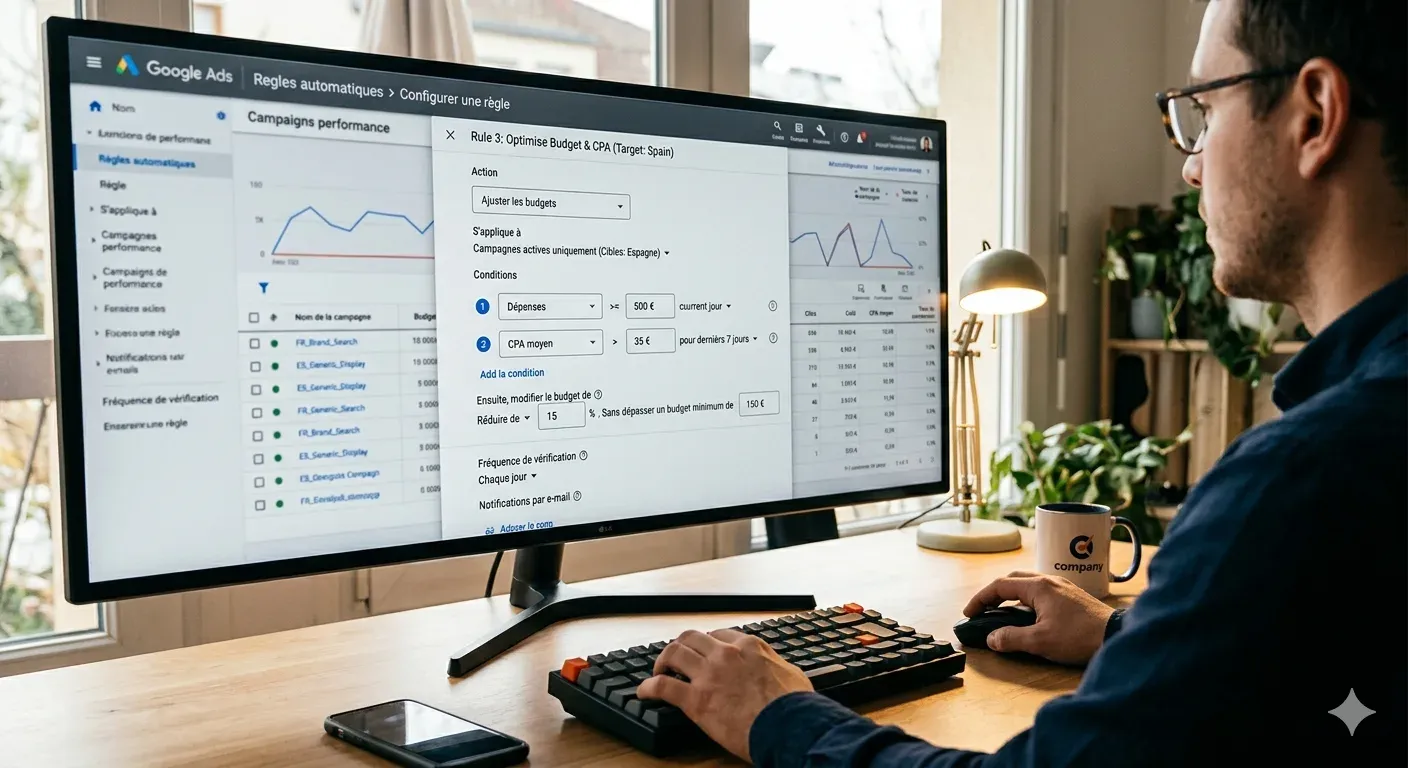
Managing paid campaigns manually is exhausting. According to the official Google Ads Help documentation, advertisers who use automated rules save an average of 5 hours per week on manual bid and budget adjustments (Google Ads Help, 2024). You get that time back without writing a single line of code.
Automated rules are the simplest form of automation available in Google Ads and Meta Ads. They are available in every account, require no scripts or external tools, and cover the most common use cases: pausing what underperforms, scaling what works, and receiving alerts before a budget runs out. To see where rules fit in the broader picture, the guide on automation in digital advertising covers the full stack.
This guide explains how to configure them step by step, which 10 rules you should activate today, and when they make sense in Meta Ads.
Key Takeaways
- Automated rules save an average of 5 hours/week in manual management (Google Ads Help, 2024).
- They are code-free if/then conditions: if CPA exceeds X, execute action Y.
- They apply separately to campaigns, ad groups, keywords, and ads.
- Meta Ads has its own rules system in Ads Manager, less flexible but sufficient for controlling frequency and budget exhaustion.
- When the logic gets complex, Google Ads scripts are the next step.
Table of Contents
- What are automated rules and how do they differ from scripts?
- How to create an automated rule in Google Ads (step by step)
- 10 essential automated rules for Google Ads
- Automated rules in Meta Ads: what you can (and cannot) do
- Common mistakes when configuring automated rules
- When to scale from rules to scripts
- Frequently Asked Questions
What are automated rules and how do they differ from scripts?
Google Ads automated rules are if/then conditions that the system evaluates on a schedule you define. If a metric exceeds or falls below a threshold, Google automatically executes an action: pause, enable, adjust, or send an email. According to Google, 73% of active Google Ads advertisers have at least one rule configured in their account (Google Ads Help, 2024). Before diving in, it’s worth reviewing the common Google Ads mistakes that cost money — many of them are exactly what well-configured rules prevent.
The difference from scripts is clear. Rules require no code: you select the entity, condition, action, and frequency from a visual interface. Scripts are JavaScript snippets that run within the platform and allow complex logic: comparing data across campaigns, reading external spreadsheets, acting on hundreds of keywords at once.
For most ecommerce advertisers managing their own campaigns, rules cover 80% of automation needs. They are the right starting point, not a second-tier solution.
When to use rules and when to use scripts
| Use case | Automated rules | Scripts |
|---|---|---|
| Pause keyword with high CPA | Yes | Yes |
| Adjust budget based on ROAS | Yes | Yes |
| Compare performance across campaigns | No | Yes |
| Integrate data from Google Sheets | No | Yes |
| Bulk changes across 500+ keywords | Difficult | Yes |
| Email alerts | Yes | Yes |
| No programming knowledge required | Yes | No |
How to create an automated rule in Google Ads (step by step)
Setting up a new rule takes less than three minutes. The process is the same for campaigns, ad groups, keywords, and ads: you change the target entity and the remaining steps are identical.
Step 1 - Access the rules
In the Google Ads dashboard, go to the left-hand column and select “Tools & Settings”. Under “Bulk Actions”, click “Rules”. You can also access this from any campaign or keyword view using the “More” button and then “Create automated rule”.
Step 2 - Choose the target entity
Select the level at which you want the rule to act: campaigns, ad groups, ads, or keywords. This choice determines which metrics and actions will be available. You cannot mix entities within a single rule.
Step 3 - Define the condition
Set the metric, operator, and threshold value. For example: “CPA > $45” or “CTR < 1% with impressions > 500”. You can add multiple conditions to the same rule using the AND operator. The system will evaluate all conditions before executing the action.
Step 4 - Define the action
Choose what Google does when the condition is met. The options vary depending on the entity: pause, enable, change bid, adjust budget, send email. You can combine an action with an email notification, which is useful when you are testing for the first time.
Step 5 - Configure the frequency
Define how often the system evaluates the rule: every hour, once a day (at a specific time), or once a week. Budget control rules work best with hourly frequency. Performance rules work best with daily frequency using data from the last 7 or 14 days.
Step 6 - Name and save the rule
Use descriptive names that include the action and the condition: “Pause keyword CPA > 3x target” or “Alert daily spend 90%”. A clear name saves time when you have 20 active rules and need to review them.
An ecommerce fashion client had a campaign exhausting its full daily budget before 11 a.m., without anyone noticing until the end of the day. We set up an hourly alert rule that sent an email when daily spend exceeded 60% of the budget before 10:00 a.m. Within three days we identified that a retargeting ad group was consuming 70% of the total budget in the early hours. The cost per purchase in that segment was three times the target. The rule did not solve the problem on its own, but it made it visible before additional spend continued to accumulate.
10 essential automated rules for Google Ads
These ten rules cover the most common scenarios in ecommerce accounts. They are ready to copy with the values shown as a starting point, which you should adjust to your own CPA, ROAS, and budget targets.
| # | Name | Entity | Condition | Action | Frequency |
|---|---|---|---|---|---|
| 1 | Pause keywords with excessive CPC | Keyword | Avg. CPC > 3x target CPA | Pause | Daily |
| 2 | Flag keywords with low QS | Keyword | Quality Score < 4 | Email alert | Weekly |
| 3 | Increase budget if ROAS is high | Campaign | ROAS > target x 1.5 | +20% budget | Daily |
| 4 | Reduce budget if CPA is high | Campaign | CPA > target x 1.3 | -20% budget | Daily |
| 5 | Pause ads with low CTR | Ad | CTR < 1% and impressions > 500 | Pause | Daily |
| 6 | Budget exhaustion alert | Campaign | Spend > 90% of daily budget | Email alert | Hourly |
| 7 | Activate seasonal campaign | Campaign | Date = July 1 00:00 | Enable | Once |
| 8 | Pause campaign at end of season | Campaign | Date = August 31 23:59 | Pause | Once |
| 9 | Pause keywords with no conversions | Keyword | Conversions = 0 and clicks > 100 | Pause | Weekly |
| 10 | Low Quality Score alert (global) | Ad group | Avg. QS < 5 | Email alert | Weekly |
Configuration notes for the most sensitive rules
Rules 3 and 4 (budget adjustment): Always use an evaluation period of at least 7 days to prevent an atypical day from triggering an adjustment. Add a maximum daily budget cap at the campaign level to limit uncontrolled growth.
Rule 9 (keywords with no conversions): Set the data window to the last 30 days, not “all time”. Keywords that converted two months ago but not this month may have a temporary issue, not a structural one.
Rules 7 and 8 (date-based activation): Google executes these rules only once on the specified date. If you need to activate and pause every year, you will need to create new rules with updated dates for each season.
Automated rules in Meta Ads: what you can (and cannot) do
Meta Ads also has its own automated rules system, accessible from Ads Manager. According to Meta for Business, automated rules reduce campaign monitoring time by 30% for advertisers who configure them correctly (Meta for Business, 2024). Access is at: Ads Manager > left column > “Automated Rules”.
The Meta rules interface is less flexible than Google’s, but it covers the most critical use cases for ecommerce: high frequency alerts and budget exhaustion notifications. The biggest limitation is that Meta does not allow cross-evaluation of conditions across different ad sets, something Google does allow at the campaign level. This is not a system flaw; it is a consequence of Meta’s optimization model: each ad set competes in its own auction.
Available conditions in Meta Ads
Meta offers fewer conditions than Google, but the essential ones are covered:
- Spend: total spend, percentage of budget spent
- Performance: CPA (cost per result), ROAS, CPM, CTR
- Delivery quality: frequency, reach, impressions
- Status: campaign active, paused, with delivery errors
Available actions in Meta Ads
- Pause campaign, ad set, or ad
- Enable campaign, ad set, or ad
- Adjust budget (percentage or fixed increase or reduction)
- Send email notification
5 recommended rules for Meta Ads
- High frequency alert: frequency > 3.5 over the last 7 days - send email. Prevents ad fatigue before it impacts CPM.
- Pause ad set with high CPA: cost per purchase > 2x target over the last 3 days - pause.
- Budget exhaustion alert: spend > 85% of the day’s budget - send email.
- Reduce budget if ROAS drops: ROAS < 1.5 over the last 7 days - reduce budget 20%.
- Pause ads with very low CTR: CTR < 0.5% with more than 2,000 impressions - pause.
Once these rules are in place, the next step is improving the underlying campaign performance. The guide on how to improve ROAS in Meta Ads covers the levers that rules alone can’t fix.
Common mistakes when configuring automated rules
According to WordStream (2024), 42% of advertisers who configure automated rules for the first time report that their rules fire excessively during the first week — almost always because the trigger threshold is set too close to the actual CPA or ROAS target rather than 20-30% outside it (WordStream Google Ads Benchmarks, 2024).
The most frequent mistake when creating automated rules is setting thresholds too close to the exact CPA or ROAS target. According to WordStream, 42% of advertisers who configure rules for the first time report that their rules fire excessively during the first week (WordStream Google Ads Benchmarks, 2024). The fix is straightforward: use margins of 20-30% above the real threshold.
Mistake 1 - Thresholds set too narrow
If your target CPA is $30 and you configure the rule to pause when CPA exceeds $31, any normal fluctuation will trigger the action. A single day of statistical noise can pause a perfectly healthy keyword. Use a threshold of 1.3x or 1.5x the target, not 1.03x.
Mistake 2 - Activating actions without “email first”
When you configure a new rule, always enable “send email” as the primary action during the first 7-10 days. Verify that the rule would have fired at the right time and for the right reasons. Then switch to the real action (pause, adjust). This step prevents unintended actions on active campaigns.
Mistake 3 - Conflicting rules
If you have one rule that increases the budget when ROAS exceeds 4x and another that reduces it when CPA exceeds $35, both conditions can be met simultaneously in the same campaign. Google executes both. The budget goes up and down on the same day without your input. Review your active rules monthly to detect overlaps.
Mistake 4 - Data window too short
A rule that evaluates “the last 3 days” may act on the statistical noise of a weekend, not on a real trend. For budget and bid decisions, use 7- or 14-day windows. For budget exhaustion alerts, hourly frequency with a same-day window is the right approach. Many of these configuration errors overlap with the broader patterns described in the guide to common mistakes in Google Ads campaigns.
When to scale from rules to scripts
Automated rules have a clear ceiling. According to Search Engine Land, 68% of advertisers spending more than $50,000 per month on Google Ads use scripts for at least one automation task (Search Engine Land, 2024). Rules are sufficient for most cases, but not all.
There are four clear signals that you need scripts instead of rules.
Signal 1 - Cross-campaign logic. You want to pause your prospecting campaign if the ROAS of your remarketing campaign falls below a threshold. Rules only act on the entity they evaluate; they cannot compare data across different campaigns.
Signal 2 - Spreadsheet integration. You need the system to read a Google Sheet with updated prices, stock levels, or margins and adjust bids accordingly. This requires scripts, not rules.
Signal 3 - Bulk changes. You have 800 keywords and need to adjust bids on all of them where CPC exceeds a certain threshold in under five minutes. Rules can do it, but a script processes it faster and with more filtering options.
Signal 4 - Multiple conditional logic. You need the action to depend on three or more conditions combined with OR operators, or the action to vary based on the metric value (not just whether it exceeds a threshold or not). That requires code. The Google Ads scripts guide walks through setup and the 7 most useful scripts in detail.
Rules and scripts are not mutually exclusive. The typical setup in mid-sized accounts is to use rules for alerts and simple adjustments, and scripts for more complex automations running in the background.
Frequently Asked Questions
Do automated rules affect the Smart Bidding learning phase?
Yes, if the rule modifies the budget or bid by more than 20%, it can reset the learning phase. Google considers that threshold a significant change (Google Ads Help, 2024). For campaigns in the learning phase, limit budget adjustments to a maximum of 15% and avoid repeatedly pausing and enabling campaigns. how Smart Bidding works and when it fails
Can I have conflicting rules active at the same time?
Yes, and it is a real problem. Google executes all rules that are triggered in the same evaluation, even if their actions are contradictory. One rule can increase the budget while another reduces it in the same campaign on the same day. Review your active rules once a month and assign exclusive conditions to rules that affect the same metric.
Do automated rules work with Performance Max campaigns?
Yes, with limitations. Campaign-level rules (budget adjustment, pause, enable, email) work in Performance Max just as they do in any other campaign type. Keyword, ad group, and ad rules do not apply, since Performance Max does not expose those entities in an editable way in the same manner.
Can I copy rules from one account to another?
Not directly. Google has no native export and import function for rules between accounts. The only way is to recreate them manually in the new account or use the Google Ads API to automate the creation. If you manage multiple accounts, it is useful to maintain a document with your standard rule configurations so you can replicate them quickly.
How often should I review my active rules?
At least once a month. Review the execution history of each rule, which is available in the same “Rules” section in Google Ads. Check how many times each one has fired, whether the actions executed were the expected ones, and whether any rule has gone weeks without firing, which may indicate the threshold is misconfigured.
Start With Alert Rules, Then Add Actions: Your 30-Day Setup Plan
Automated rules are not an optional extra: they are the first layer of control that any active account should have. They cover budget exhaustion, keyword performance, and the activation or pausing of seasonal campaigns without requiring constant supervision.
The right workflow is this: start with email alert rules, validate that they fire when they should, and then add the action rules. Review the execution history once a month to detect conflicts or miscalibrated thresholds.
When rules fall short, that is the moment to move to scripts. But for most ecommerce accounts, ten well-configured rules cover 80% of the most common automation use cases.
Want to check whether your account has the right rules configured? If you’d like an expert review of your Google Ads account, request a free audit here.
Related articles:
- AI and automation in digital advertising: what works in 2026
- Google Ads scripts: advanced automation guide
Sources
- Table of Contents
- What are automated rules and how do they differ from scripts?
- When to use rules and when to use scripts
- How to create an automated rule in Google Ads (step by step)
- Step 1 - Access the rules
- Step 2 - Choose the target entity
- Step 3 - Define the condition
- Step 4 - Define the action
- Step 5 - Configure the frequency
- Step 6 - Name and save the rule
- 10 essential automated rules for Google Ads
- Configuration notes for the most sensitive rules
- Automated rules in Meta Ads: what you can (and cannot) do
- Available conditions in Meta Ads
- Available actions in Meta Ads
- 5 recommended rules for Meta Ads
- Common mistakes when configuring automated rules
- Mistake 1 - Thresholds set too narrow
- Mistake 2 - Activating actions without “email first”
- Mistake 3 - Conflicting rules
- Mistake 4 - Data window too short
- When to scale from rules to scripts
- Frequently Asked Questions
- Do automated rules affect the Smart Bidding learning phase?
- Can I have conflicting rules active at the same time?
- Do automated rules work with Performance Max campaigns?
- Can I copy rules from one account to another?
- How often should I review my active rules?
- Start With Alert Rules, Then Add Actions: Your 30-Day Setup Plan
- Sources

Could your ad campaigns
perform better?
30 minutes to review your situation and tell you exactly what I would change. No pitch, no sales proposal.